How to connect Linear MCP with VS Code

How to connect Linear MCP with VS Code VS Code is the most popular code editor out there. With its recent AI makeover, it can do more than just help you write code. You can connect your applications to it and let LLMs automate many of the mundane tasks in your workflow. In this guide, I will explain how to connect Linear with VS Code in the most secure and robust way possible via Composio.

Linear logoLinear
Oauth2Api Key

Linear is a modern issue tracking and project planning tool for fast-moving teams. It helps streamline workflows, organize projects, and boost productivity.

32 Tools3 Triggers

How to connect Linear MCP with VS Code

VS Code is the most popular code editor out there. With its recent AI makeover, it can do more than just help you write code. You can connect your applications to it and let LLMs automate many of the mundane tasks in your workflow.

In this guide, I will explain how to connect Linear with VS Code in the most secure and robust way possible via Composio.

Also integrate Linear with

Why use Composio?

Composio provides:

  • Access to 1,000+ managed apps from a single MCP endpoint. This makes it convenient for agents to run cross-app workflows.
  • Programmatic tool calling. Allows LLMs to write its code in a remote workbench to handle complex tool chaining. Reduces to-and-fro with LLMs for frequent tool calling.
  • Large tool response handling outside the LLM context. This minimizes context bloat from large tool responses.
  • Dynamic just-in-time access to thousands of tools across hundreds of apps. Composio loads the tools your agent needs, so LLMs are not overwhelmed by tools they do not need.

Integrate Linear MCP with VS Code

1. Install with one click

Click the button below to add Composio to VS Code. You will be prompted to authorize. This requires VS Code 1.99+ with GitHub Copilot.

+Install in VS Code

2. Or add manually

Open or create .vscode/mcp.json in your project root and add the following configuration:

bash
{
  "servers": {
    "composio": {
      "type": "http",
      "url": "https://connect.composio.dev/mcp"
    }
  }
}

3. Authorize

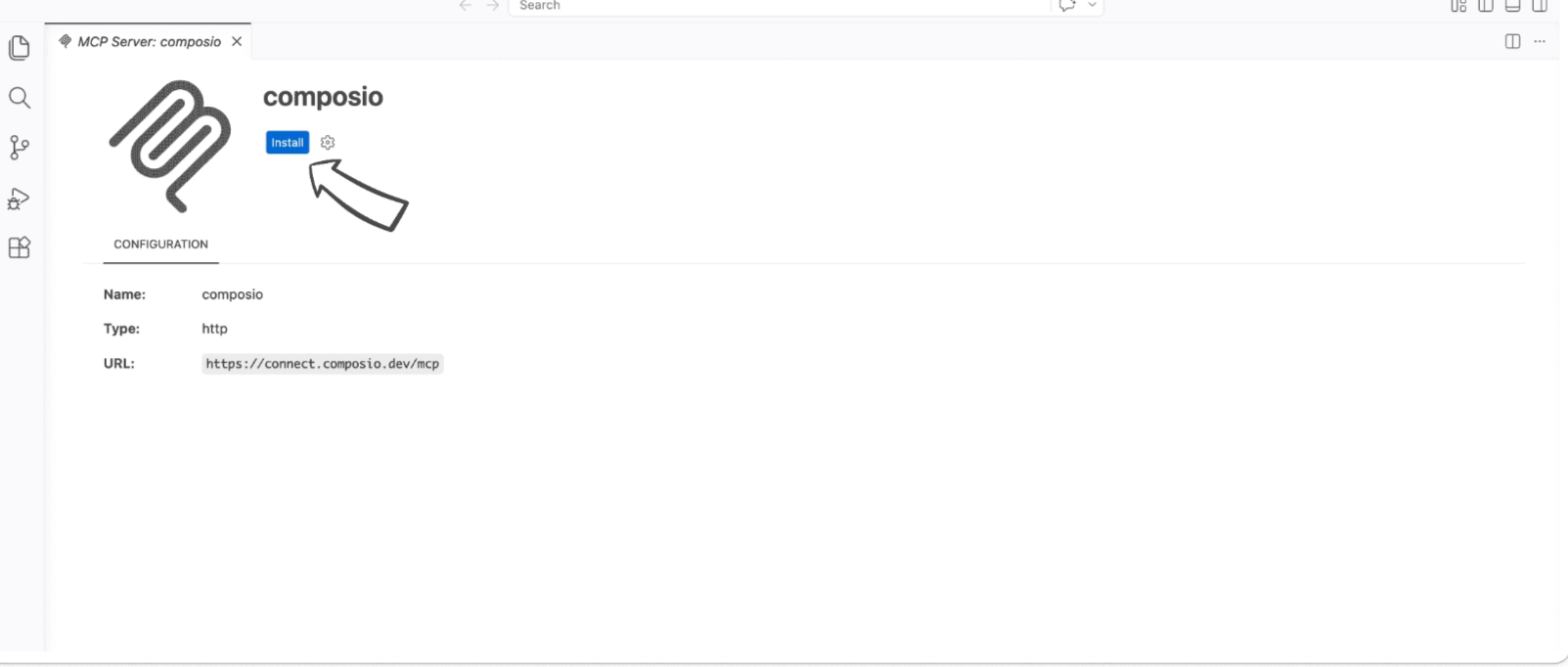
Click the install button to authorize VS Code to connect to Composio. VS Code will detect OAuth and prompt you to sign in.

VS Code MCP server install screen for Composio

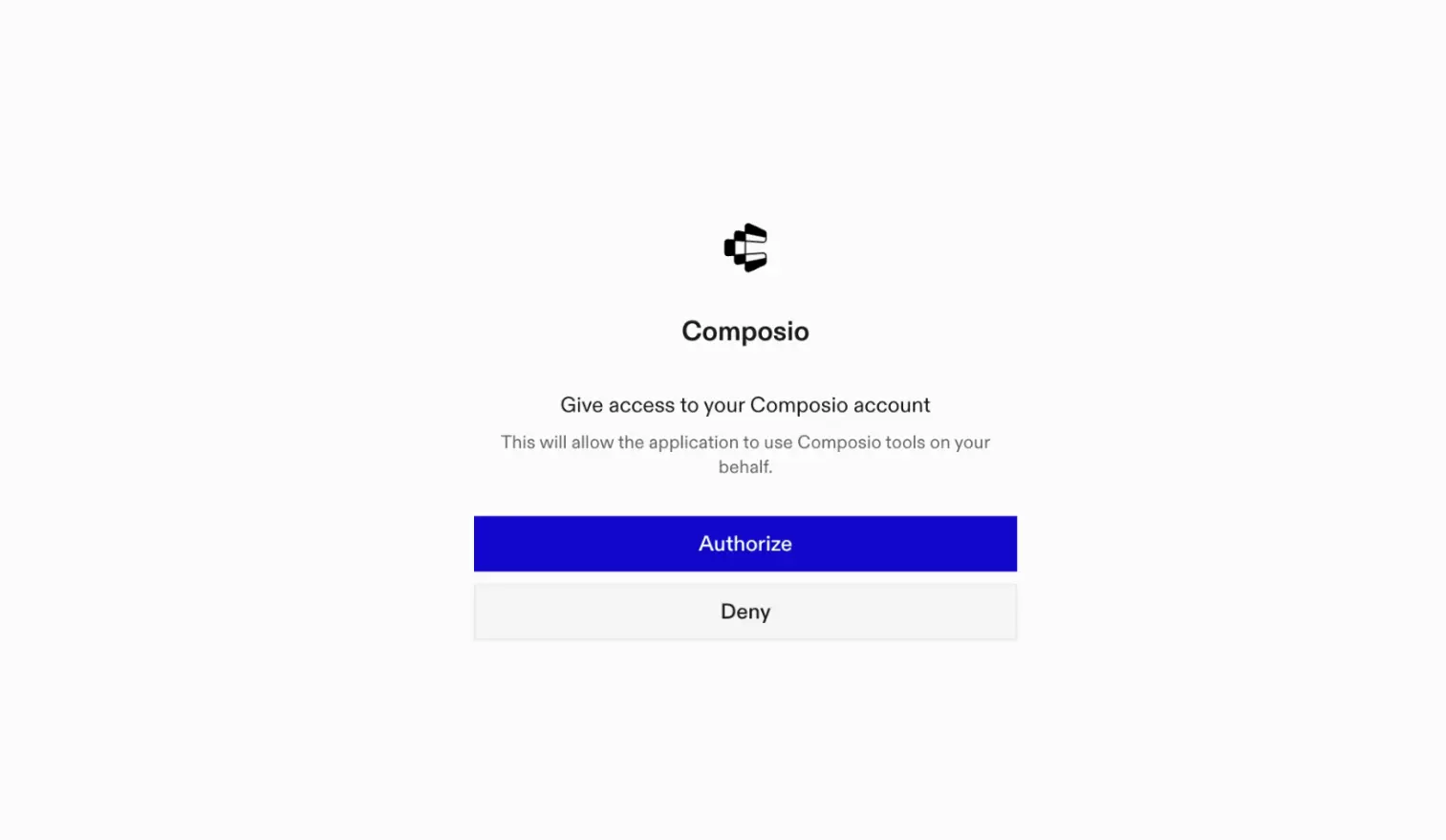
A browser window will open to authorize.

Composio authorization browser window

4. Authenticate Linear and start working

Back in VS Code chat, ask the agent to connect to Linear or give it any Linear-related task.

For example, ask it to:

  • "Create a new bug for team Mobile"
  • "Add a comment to issue LIN-123"
  • "List all cycles for the Design team"

It will prompt you to authenticate and authorize access to Linear.

That is it. Composio tools are now available in VS Code, and your Linear account is ready to use.

Way Forward

Now that Linear is connected, extend your setup by connecting the other apps you already use every day, so your agent can run true cross-app workflows end to end.

  • Connect Calendar to turn threads into scheduled meetings automatically.
  • Connect Slack or Teams to post summaries, approvals, and alerts where your team works.
  • Connect Notion, Linear, Jira, or Asana to convert requests into tickets, tasks, and docs.
  • Connect Drive, Dropbox, or OneDrive to fetch, file, and share attachments without manual steps.
  • Connect HubSpot or Salesforce to log customer context, update records, and draft follow-ups.

Start with one workflow you do repeatedly, then keep adding apps as you find new handoffs. With everything behind a single MCP endpoint, your agent can coordinate multiple tools safely and reliably in one conversation.

TOOLS & TRIGGERS

Supported Tools and Triggers

Every Linear action and event your agent gets out of the box.

Create attachment

Creates a new attachment and associates it with a specific, existing Linear issue.

Add reaction to comment

Tool to add a reaction to an existing Linear comment.

Create a comment

Creates a new comment on a specified Linear issue.

Create linear issue

Creates a new issue in a specified Linear project and team, requiring team_id and title, and allowing optional properties like description, assignee, state, priority, cycle, and due date.

Create issue relation

Create a relationship between two Linear issues using the issueRelationCreate mutation.

Create a label

Creates a new label in Linear for a specified team, used to categorize and organize issues.

Create Project

Creates a new Linear project with specified name and team associations.

Create Project Milestone

Tool to create a project milestone in Linear with a name and optional target date and sort order.

Create Project Update

Tool to create a project status update post for a Linear project.

Delete issue

Archives an existing Linear issue by its ID, which is Linear's standard way of deleting issues; the operation is idempotent.

Download issue attachments

Downloads a specific attachment from a Linear issue; the `file_name` must include the correct file extension.

Get current user

Gets the currently authenticated user's ID, name, email, and other profile information — this is the account behind the API token, which may be a bot or service account rather than a human user.

Get cycles by team ID

Retrieves all cycles for a specified Linear team ID; cycles are time-boxed work periods (like sprints).

Get create issue default params

Fetches a Linear team's default issue estimate and state, useful for pre-filling new issue forms.

Get Linear issue

Retrieves an existing Linear issue's comprehensive details, including id, identifier, title, description, timestamps, state, team, creator, attachments, comments (with user info and timestamps, use issue.

Get Linear project

Retrieves a single Linear project by its unique identifier.

List issue drafts

Tool to list issue drafts.

List issues by team ID

Tool to list all issues for a specific Linear team, scoped by team ID.

Get all cycles

Retrieves all cycles (time-boxed sprint iterations) org-wide from the Linear account; no filters applied.

List Linear issues

Lists non-archived Linear issues; if project_id is not specified, issues from all accessible projects are returned.

Get labels

Retrieves labels from Linear.

List linear projects

Retrieves all projects from the Linear account.

List Linear states

Retrieves all workflow states for a specified team in Linear, representing the stages an issue progresses through in that team's workflow.

Get teams

Retrieves all teams with their members and projects.

List Linear users

Lists all workspace users (not team-scoped) with their IDs, names, emails, and active status.

Remove label from Linear issue

Removes a specified label from an existing Linear issue using their IDs; successful even if the label isn't on the issue.

Remove reaction from comment

Tool to remove a reaction on a comment.

Run Query or Mutation

Execute any GraphQL query or mutation against Linear's API.

Search Linear issues

Search Linear issues using full-text search across identifier, title, and description.

Update issue

Updates an existing Linear issue using its `issue_id`; requires at least one other attribute for modification, and all provided entity IDs (for state, assignee, labels, etc.

Update a comment

Tool to update an existing Linear comment's body text.

Update Project

Tool to update an existing Linear project.

FAQ

Frequently asked questions

With a standalone Linear MCP server, the agents and LLMs can only access a fixed set of Linear tools tied to that server. However, with the Composio Tool Router, agents can dynamically load tools from Linear and many other apps based on the task at hand, all through a single MCP endpoint.

Yes, you can. VS Code fully supports MCP integration. You get structured tool calling, message history handling, and model orchestration while Tool Router takes care of discovering and serving the right Linear tools.

Yes, absolutely. You can configure which Linear scopes and actions are allowed when connecting your account to Composio. You can also bring your own OAuth credentials or API configuration so you keep full control over what the agent can do.

All sensitive data such as tokens, keys, and configuration is fully encrypted at rest and in transit. Composio is SOC 2 Type 2 compliant and follows strict security practices so your Linear data and credentials are handled as safely as possible.

Start with Linear.It takes 30 seconds.

Managed auth, hosted MCP servers, and every Linear tool your agent needs.Free to start.

Start building