How to integrate Google Docs MCP with OpenCode

How to integrate Google Docs MCP with OpenCode This guide explains how to connect Google Docs MCP to OpenCode using Composio Connect, which simplifies OAuth, API changes, and reliability concerns. There are two ways to set this up: Via Composio Connect MCP Via the Composio CLI

Google Docs logoGoogle Docs
Oauth2

Google Docs is a cloud-based word processor that enables document creation and real-time collaboration. Its seamless sharing and version history make team editing and content management a breeze.

33 Tools10 Triggers

How to integrate Google Docs MCP with OpenCode

This guide explains how to connect Google Docs MCP to OpenCode using Composio Connect, which simplifies OAuth, API changes, and reliability concerns.

There are two ways to set this up:

Also integrate Google Docs with

Why use Composio?

Composio provides a single MCP server or CLI tool that exposes a set of meta-tools, allowing you to:

  • Connect to 1,000+ apps with on-demand tool loading, so you do not fill your LLM context window with unnecessary tool definitions.
  • Use programmatic tool calling through a remote Bash tool, letting LLMs write their own code to handle complex tool chaining. This reduces back-and-forth for frequent tool calls.
  • Handle large tool responses outside the LLM context to keep conversations lean.

Connect Google Docs with OpenCode

Option 1: Using Composio CLI

1. Install Composio CLI

Install the Composio CLI, authenticate, and initialize your project:

bash
# Install the Composio CLI
curl -fsSL https://composio.dev/install | bash

# Authenticate with Composio
composio login

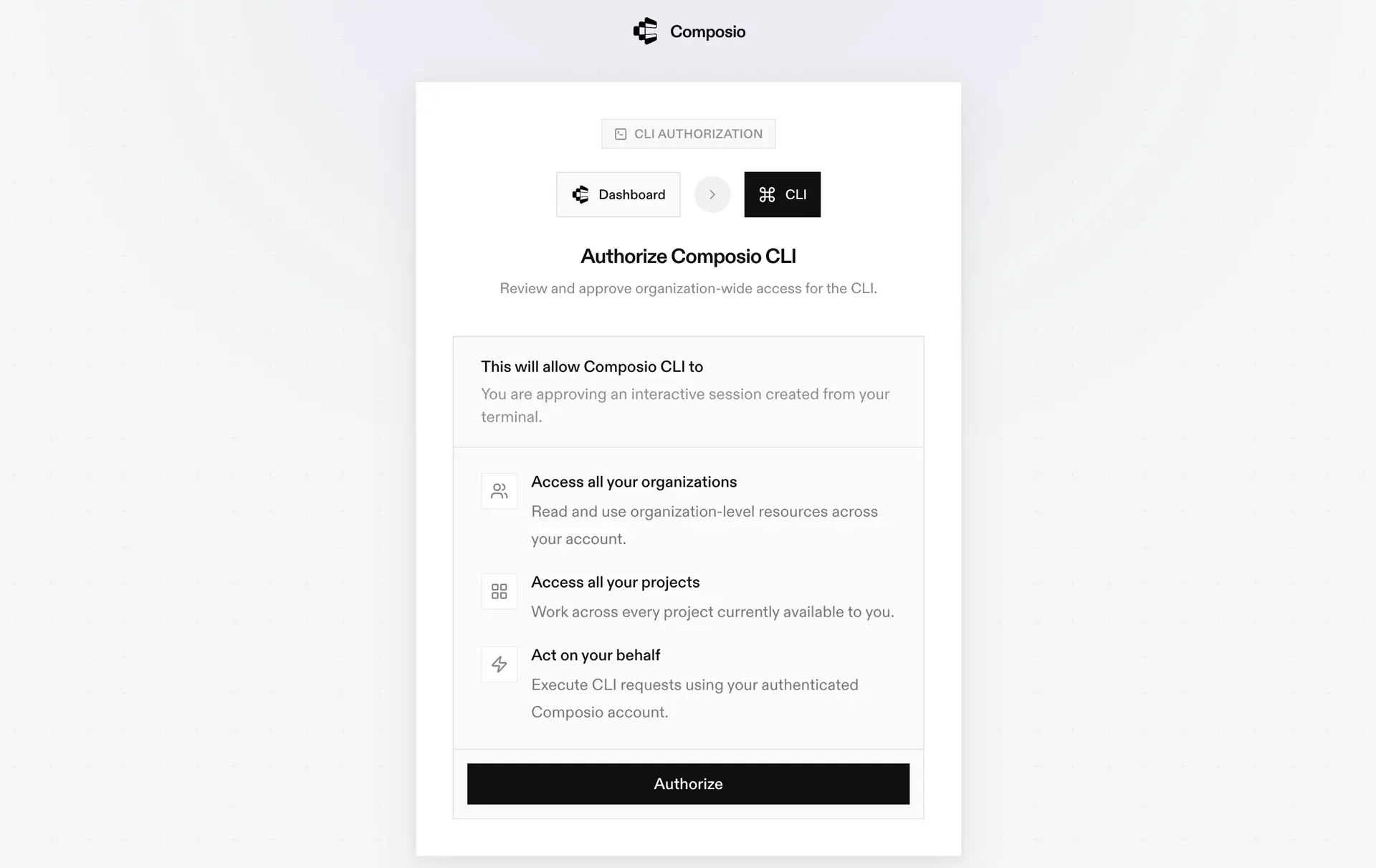
During login, you will be redirected to the sign-in page. Finish the flow and you are all set.

Composio CLI authorization screen

2. Authorize Google Docs

Once the CLI is installed, it is essentially done. Give OpenCode access to your apps with these steps:

  1. Launch OpenCode.
  2. Prompt it to "Authenticate with Google Docs Composio".
  3. Complete the authentication and authorization flow, and your Google Docs integration is all set.
  4. Start asking anything you want.

Option 2: Using Composio MCP

You can also connect Google Docs to OpenCode by adding Composio as an MCP server through the OpenCode CLI.

1. Add the Composio MCP server

bash
opencode mcp add

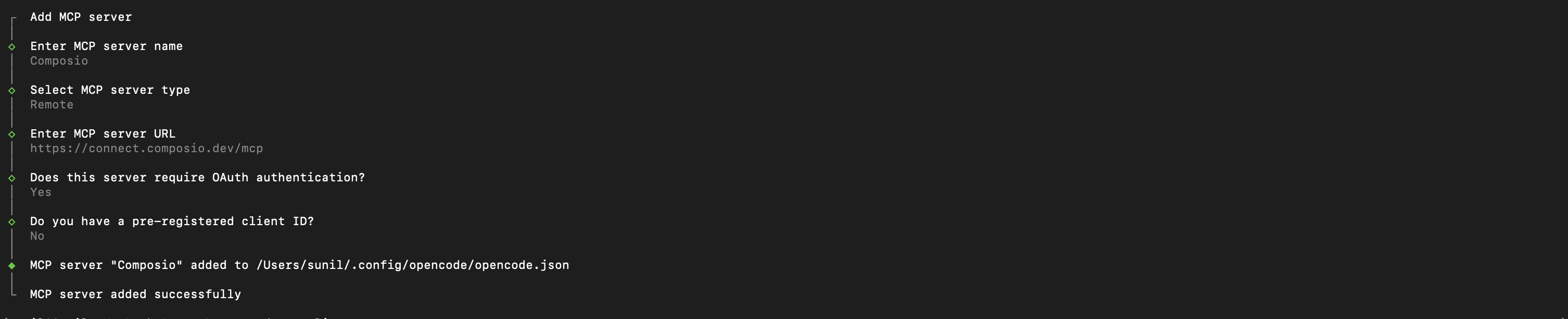
This launches an interactive prompt.

2. Fill in the fields

FieldValue
Namecomposio
Typeremote
URLhttps://connect.composio.dev/mcp
Require OAuthYes
Have client IDNo
OpenCode MCP server interactive prompt for Composio

Alternatively, you can skip the interactive prompt and paste the configuration directly into your OpenCode config file.

Open your global OpenCode config:

bash
open ~/.config/opencode/opencode.json

Add this under the mcp key and save the file.

bash
{
  "mcp": {
    "composio": {
      "type": "remote",
      "url": "https://connect.composio.dev/mcp",
      "enabled": true
    }
  }
}

3. Authenticate

Authenticate the Composio MCP server you just added:

bash
opencode mcp auth composio

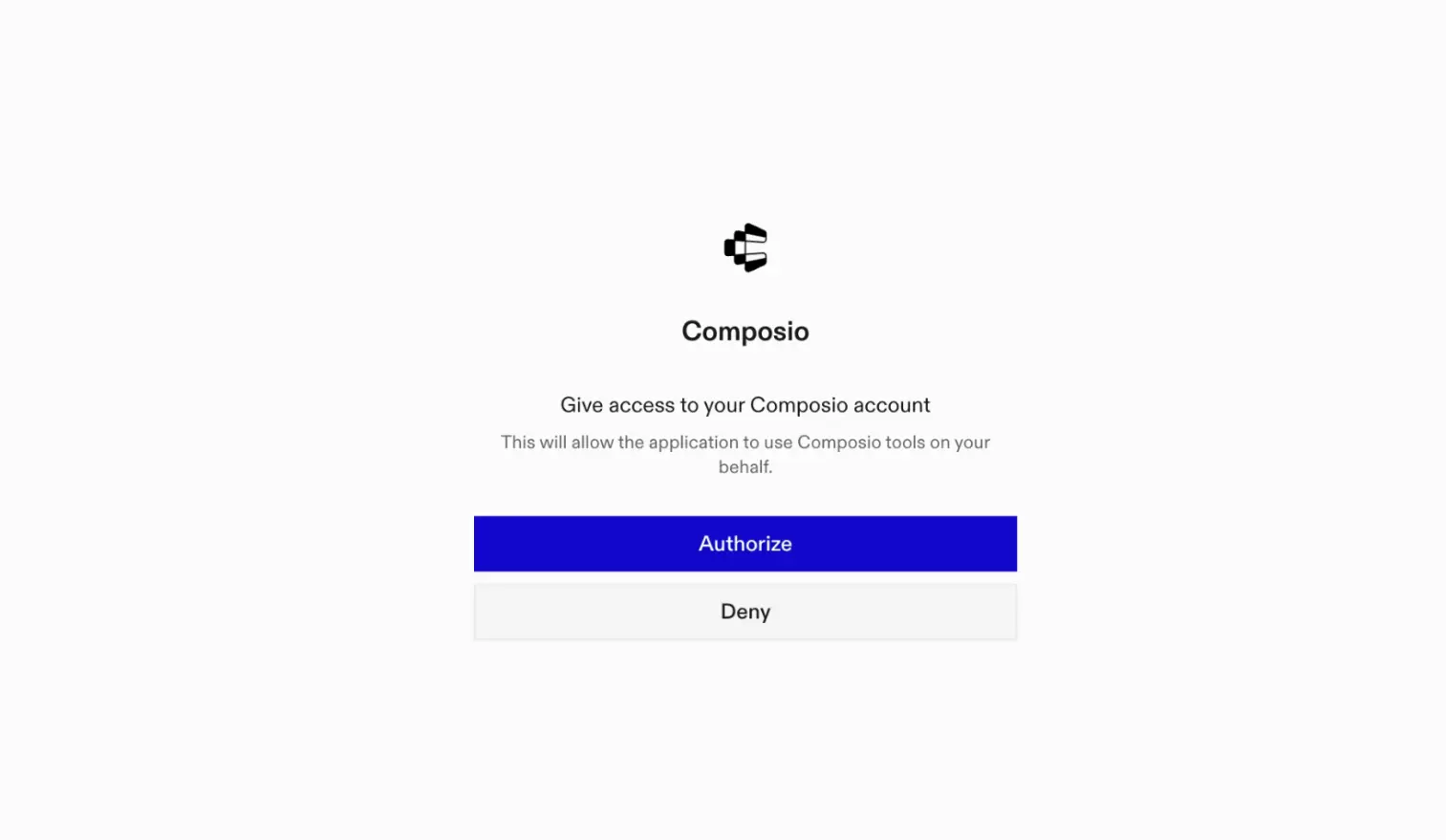
This opens a browser session. Authorize Composio and you are done.

Composio browser authorization for OpenCode MCP

4. Verify installation

bash
opencode mcp list

5. Connect Google Docs with OpenCode

Now, in the chat, ask the agent to connect to Google Docs or give it any Google Docs-related task.

For example, ask it to:

  • "Create a new meeting notes document"
  • "Copy last week's project summary template"
  • "Add bullet points to the action items section"

It will prompt you to authenticate and authorize access to Google Docs.

That is it. Composio tools are now available in OpenCode, and your Google Docs account is ready to use.

Way Forward

Now that Google Docs is connected, extend your setup by connecting the other apps you already use every day, so your agent can run true cross-app workflows end to end.

  • Connect Calendar to turn threads into scheduled meetings automatically.
  • Connect Slack or Teams to post summaries, approvals, and alerts where your team works.
  • Connect Notion, Linear, Jira, or Asana to convert requests into tickets, tasks, and docs.
  • Connect Drive, Dropbox, or OneDrive to fetch, file, and share attachments without manual steps.

Start with one workflow you do repeatedly, then keep adding apps as you find new handoffs. With everything behind a single MCP endpoint, your agent can coordinate multiple tools safely and reliably in one conversation.

TOOLS & TRIGGERS

Supported Tools and Triggers

Every Google Docs action and event your agent gets out of the box.

Copy Google Document

Tool to create a copy of an existing Google Document.

Create a document

Creates a new Google Docs document using the provided title as filename and inserts the initial text at the beginning if non-empty, returning the document's ID and metadata (excluding body content).

Create Document Markdown

Creates a new Google Docs document, optionally initializing it with a title and content provided as Markdown text.

Create Footer

Tool to create a new footer in a Google Document.

Create Footnote

Tool to create a new footnote in a Google Document.

Create Header

Tool to create a new header in a Google Document, optionally with text content.

Create Named Range

Tool to create a new named range in a Google Document.

Create Paragraph Bullets

Tool to add bullets to paragraphs within a specified range in a Google Document.

Delete Content Range in Document

Tool to delete a range of content from a Google Document.

Delete Footer

Tool to delete a footer from a Google Document.

Delete Header

Deletes the header from the specified section or the default header if no section is specified.

Delete Named Range

Tool to delete a named range from a Google Document.

Delete Paragraph Bullets

Tool to remove bullets from paragraphs within a specified range in a Google Document.

Delete Table Column

Tool to delete a column from a table in a Google Document.

Delete Table Row

Tool to delete a row from a table in a Google Document.

Export Google Doc as PDF

Tool to export a Google Docs file as PDF using the Google Drive API.

Get document by id

Retrieves an existing Google Document by its ID; will error if the document is not found.

Get document plain text

Retrieve a Google Doc by ID and return a best-effort plain-text rendering.

Insert Inline Image

Tool to insert an image from a given URI at a specified location in a Google Document as an inline image.

Insert Page Break

Tool to insert a page break into a Google Document.

Insert Table in Google Doc

Tool to insert a table into a Google Document.

Insert Table Column

Tool to insert a new column into a table in a Google Document.

Insert Text into Document

Tool to insert a string of text at a specified location within a Google Document.

Get Charts from Spreadsheet

Tool to retrieve a list of all charts from a specified Google Sheets spreadsheet.

Replace All Text in Document

Tool to replace all occurrences of a specified text string with another text string throughout a Google Document.

Replace Image in Document

Tool to replace a specific image in a document with a new image from a URI.

Search Documents

Search for Google Documents using various filters including name, content, date ranges, and more.

Unmerge Table Cells

Tool to unmerge previously merged cells in a table.

Update Document Markdown

Replaces the entire content of an existing Google Docs document with new Markdown text; requires edit permissions for the document.

Update Document Section Markdown

Tool to insert or replace a section of a Google Docs document with Markdown content.

Update Document Style

Tool to update the overall document style, such as page size, margins, and default text direction.

Update existing document

Applies programmatic edits, such as text insertion, deletion, or formatting, to a specified Google Doc using the `batchUpdate` API method.

Update Table Row Style

Tool to update the style of a table row in a Google Document.

FAQ

Frequently asked questions

With a standalone Google Docs MCP server, the agents and LLMs can only access a fixed set of Google Docs tools tied to that server. However, with the Composio Tool Router, agents can dynamically load tools from Google Docs and many other apps based on the task at hand, all through a single MCP endpoint.

Yes, you can. OpenCode fully supports MCP integration. You get structured tool calling, message history handling, and model orchestration while Tool Router takes care of discovering and serving the right Google Docs tools.

Yes, absolutely. You can configure which Google Docs scopes and actions are allowed when connecting your account to Composio. You can also bring your own OAuth credentials or API configuration so you keep full control over what the agent can do.

All sensitive data such as tokens, keys, and configuration is fully encrypted at rest and in transit. Composio is SOC 2 Type 2 compliant and follows strict security practices so your Google Docs data and credentials are handled as safely as possible.

Start with Google Docs.It takes 30 seconds.

Managed auth, hosted MCP servers, and every Google Docs tool your agent needs.Free to start.

Start building